Use tmux to automate your developer setup
For my development setup I typically rely on Development Containers which works very UI centric. Your Ide discovers the .devcontainer folder and boots an edit container and starts whatever you have defined in your docker-compose.yml file. This is great for sharing, I wrote about it, read for a refresher.
In a terminal centric world this is a heavy approach and I want options
Multiplex your terminal
My goal: with a single script start quarkus dev, twice npm run dev and a database (Apache CouchDB, glad you asked). They all need to run in the foreground, so I can keep an eye on them. This precludes simply using & to run them in the background.
Enter tmux. The wiki describes it: "tmux is a terminal multiplexer. It lets you switch easily between several programs in one terminal, detach them (they keep running in the background) and reattach them to a different terminal." Claude described it like this (might contain emscripten):
Old habits die hard: you open a terminal, start a long running task, your SSH (Secure Shell) connection drops and your task dies with it. Enter tmux, the terminal multiplexer. It sits between your terminal and your shell sessions, so the sessions live on the server (or your machine), not in the window you happen to be looking at. Close the laptop, reconnect from the coffee shop, run tmux attach and everything is exactly where you left it.
Multiplexing is the second trick: one terminal window hosts multiple sessions, each with multiple windows (think tabs), each split into panes. API server on the left, logs on the right, a shell at the bottom — all navigated by keyboard, no mouse gymnastics required. Everything hangs off a prefix key, Ctrl-b by default, which the seasoned crowd promptly remaps to Ctrl-a (a habit inherited from GNU screen, tmux's venerable predecessor).
The price of admission is a modest set of keyboard shortcuts and, optionally, a ~/.tmux.conf to bend it to your will. The payoff: sessions that survive disconnects, scripted development environments that launch your entire workspace with one command, and even pair programming by attaching two people to the same session. As usual YMMV.
Installation is straight forward on macOS: brew install tmux, similar on Linux: apt install tmux as on Windows using WSL. Let's dig into the script:
#!/bin/zsh
# dev-up.sh — CouchDB + backend + frontend + admin in one tmux session

SESSION="dev"
START_DIR="$HOME/Code/project"
BACKEND_DIR="$START_DIR/app-backend"
FRONTEND_DIR="$START_DIR/app-frontend"
MOBILE_DIR="$START_DIR/app-mobile"

# Re-attach if already running
if tmux has-session -t "$SESSION" 2>/dev/null; then
  echo "Existing session found"
  tmux attach -t "$SESSION"
  exit 0
fi

# Pane 0: CouchDB in Docker
cd "$START_DIR"

tmux new-session -d -s "$SESSION" -c "$START_DIR" \
  -x "$(tput cols)" -y "$(tput lines)" \
  './startcouch.sh; zsh'

# Pane 1: backend (Quarkus)
tmux split-window -t "$SESSION" -c "$BACKEND_DIR" 'until curl -sf http://localhost:5984/_up; do sleep 1; done && quarkus dev; zsh'

# Pane 2: frontend
tmux split-window -t "$SESSION" -c "$FRONTEND_DIR" 'npm run dev; zsh'

# Pane 3:mobile
tmux split-window -t "$SESSION" -c "$MOBILE_DIR" 'npm run dev; zsh'

# select tile layout then attach
tmux select-layout -t "$SESSION" main-horizontal
tmux attach -t "$SESSION"
Let's dissect what's happening here:
- Up to line 9 is just setup, define the directories with the action
- Line 10-15 checks if it actually runs in the background and can be resurrected
- Line 20-22 starts a new session and launches couchDB (see below), the
tputcommand finds the actual terminal size - Line 25 splits the session into two, waits for couchDB to be ready and starts Quarkus
- Line 28, 31 split the session again and run the front-ends
- In line 34 the layout is picked, just as starting point
- Finally in line 35 you will see the result
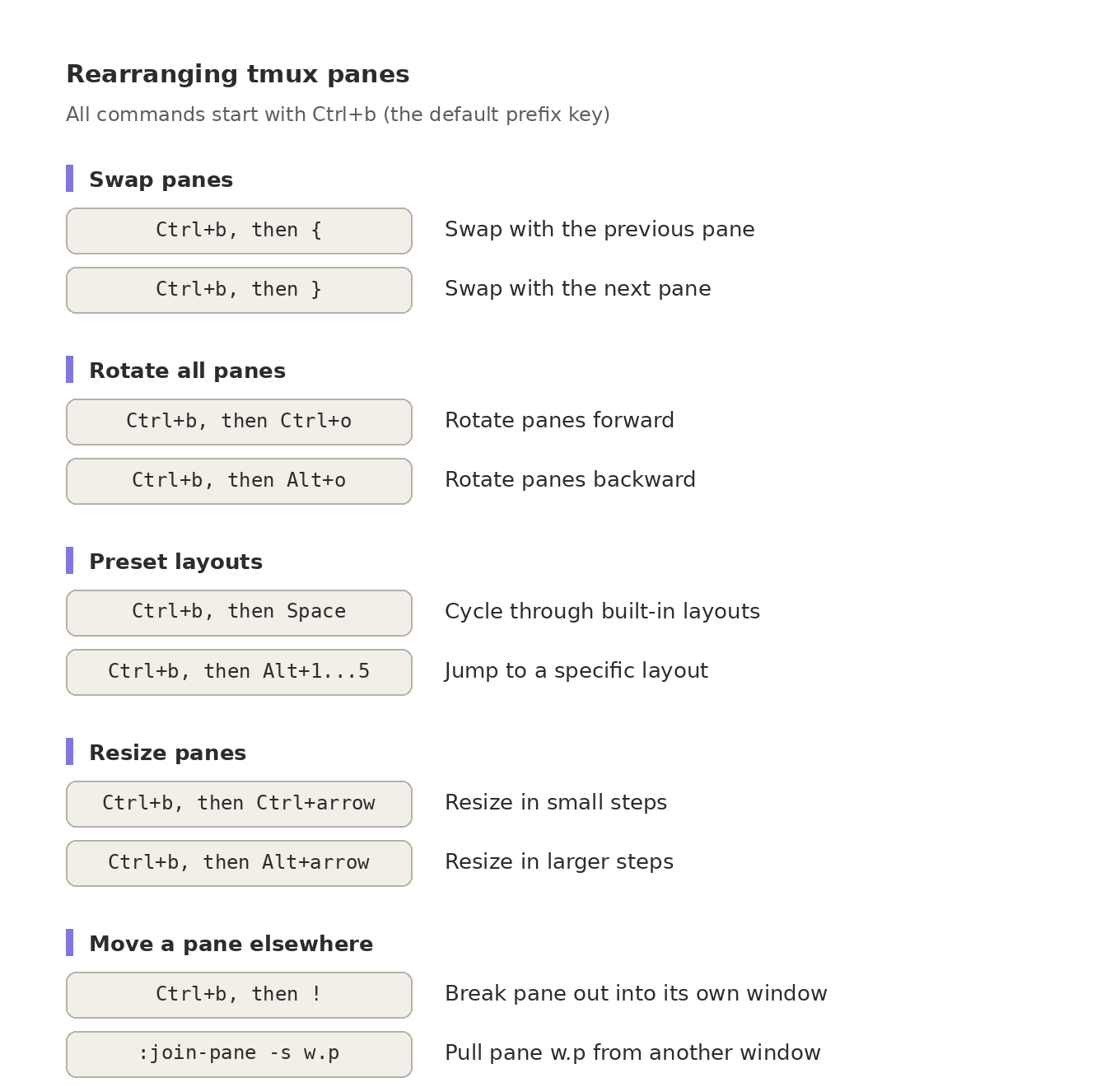
Since it is mostly keyboard driven, so I got myself a cheat sheet:
More scripts
Launching multiple Claude sessions
#!/bin/zsh
# claude-up.sh — 3 panels in one tmux session

SESSION="claude"
START_DIR="$HOME/Code/project"
BACKEND_DIR="$START_DIR/app-backend"
FRONTEND_DIR="$START_DIR/app-frontend"
MOBILE_DIR="$START_DIR/app-mobile"

# Re-attach if already running
if tmux has-session -t "$SESSION" 2>/dev/null; then
  echo "Existing session found"
  tmux attach -t "$SESSION"
  exit 0
fi

tmux new-session -d -s "$SESSION" -c "$BACKEND_DIR" \
  -x "$(tput cols)" -y "$(tput lines)" 'claude -w'

tmux split-window -t "$SESSION" -c "$FRONTEND_DIR" 'claude -w'
tmux split-window -t "$SESSION" -c "$mobile_DIR" 'claude -w'

# select tile layout then attach
tmux select-layout -t "$SESSION" even-vertical
tmux attach -t "$SESSION"
Shutting them down
tmux can send keystrokes, so an orderly automated shutdown is possible
#!/bin/zsh
# dev-down.sh — graceful teardown of the dev session

SESSION="dev"
SESSION2="claude"

if ! tmux has-session -t "$SESSION" 2>/dev/null; then
  echo "Session '$SESSION' not running."
  exit 0
fi

# Panes 1–3: backend, frontend, admin — send q + Enter
for PANE in 1 2 3; do
  tmux send-keys -t "$SESSION.$PANE" 'q' Enter
done

# Pane 0: stop the CouchDB container (with --rm it also removes itself)
docker stop beyondcouchdb

# Give processes a moment to shut down cleanly
sleep 5

# Kill the session (harmless if panes already closed it)
tmux kill-session -t "$SESSION"

echo "Dev environment stopped."

if ! tmux has-session -t "$SESSION2" 2>/dev/null; then
  echo "Session '$SESSION2' not running."
  exit 0
fi

# Panes 0-2: Claude Code — send /exit
for PANE in 0 1 2; do
  tmux send-keys -t "$SESSION2:0.$PANE" '/exit' Enter
done

# Kill the session (harmless if panes already closed it)
tmux kill-session -t "$SESSION2"

echo "Claude environment stopped."
Start couchDB
#!/bin/zsh
# Run a local instance of couchDB

NAME="localcouch"

if docker ps -q -f name="^${NAME}$" | grep -q .; then
  echo "${NAME} already running"
  docker logs -f "${NAME}"          # follow logs so the tmux pane shows output
elif docker ps -aq -f name="^${NAME}$" | grep -q .; then
  echo "Starting existing container ${NAME}"
  docker start -a "$NAME"         # -a attaches output to the pane
else
  echo "Creating container ${NAME}"
  docker run \
    --name "${NAME}" \
    -p 5984:5984 \
    --env-file .env \
    -v "$(pwd)/couchdb/data:/opt/couchdb/data" \
    -v "$(pwd)/couchdb/etc:/opt/couchdb/etc/local.d" \
    couchdb:3
fi
Alternatives
- as mentioned: Development Containers
- on macOS: an osascript (aka Applescript) to end up with multiple terminal windows
#!/bin/zsh
osascript <<'EOF'
tell application "Terminal"
  activate
  do script "cd ~/projects/app/frontend && npm run dev"
  do script "cd ~/projects/app/mobile && npm run dev"
  do script "cd ~/projects/app/backend && quarkus dev"
end tell
EOF
As usual YMMV
Posted by Stephan H Wissel on 12 August 2026 categories: AIDevelopment